
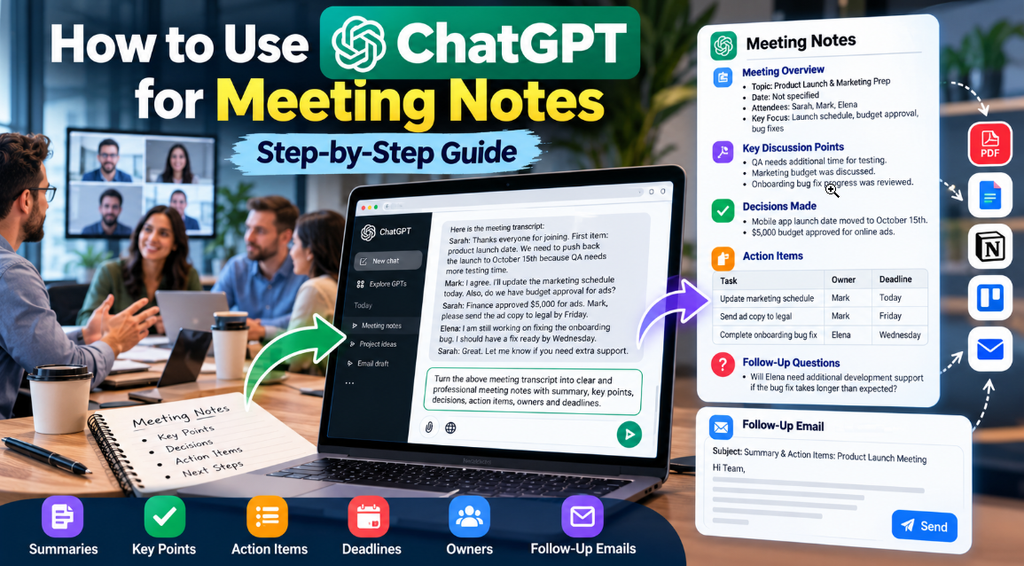
Hand writing meeting notes is one of those tasks that seem simple but often aren’t. You are trying to listen, participate in the discussion, and write simultaneously often resulting in incomplete notes, missed action items, or a document that no one revisits after the meeting ends.
Meeting notes generated via ChatGPT completely transform this scenario. With the help of AI in Google Docs, you can prepare an organized template before the meeting starts, generate a polished summary in seconds by pasting the raw transcript, and even draft follow-up emails without switching browser tabs. This guide explains how to set this up using GPT Workspace an AI add-on that brings the convenience of ChatGPT directly into Google Workspace apps.
ChatGPT can help turn meeting transcripts or rough notes into organized summaries, decisions, action items, and follow-up emails. Instead of manually sorting through every part of a conversation, you can provide the relevant text and ask ChatGPT to organize it into a useful format.
Also Read: Best AI Meeting Assistants in 2026
Table of Contents
Can ChatGPT Take Meeting Notes?
ChatGPT can look at explain and arrange meeting details that you give. The ability to record turn speech into writing upload files and recognize voice can vary based on your ChatGPT version, your account and what features are available now.
A typical way to do this is to use a meeting tool or a service that turns speech into writing to make a written version of the conversation and then share that written version with ChatGPT.
It is helpful to break the process into steps:
- Recording and turning speech into writing: A meeting tool or a service that turns speech into writing captures the conversation and changes the words that people say into text.
- Giving the text: You. Paste the written version into ChatGPT. You upload it if file uploads are allowed.
- Arranging the details: ChatGPT can change the text into parts, like ideas choices made and things that were talked about.
- Finding tasks to do: ChatGPT can spot jobs that people need to do and the dates when they need to be done if those dates are clearly said.
This shows that ChatGPT can help with making written records of meetings. You should still check the result to make sure it is correct.
Also Read: How to Use ChatGPT for Emails: Step-by-Step Guide
What You Need Before Using ChatGPT for Meeting Notes
To create useful ChatGPT meeting notes, you generally need three things.
1. A Meeting Transcript or Rough Notes
You can use an automatically generated transcript from a supported meeting platform or transcription service. You can also provide notes that you wrote manually during the meeting.
2. The Meeting Content in a Usable Format
You need to be able to copy the relevant text into ChatGPT or upload a supported document or file.
File-upload options, file-size limits, and other features can vary depending on your ChatGPT plan and account settings.
3. A Clear Prompt
A good prompt tells ChatGPT exactly how you want the information organized.
For example, you can ask for:
- A short meeting summary
- Key discussion points
- Decisions made
- Action items
- Responsible people
- Deadlines
- Open questions
- Follow-up tasks
The more specific your instructions are, the easier it is to get notes in a format that matches your needs.
How to Use ChatGPT for Meeting Notes: Step-by-Step Guide
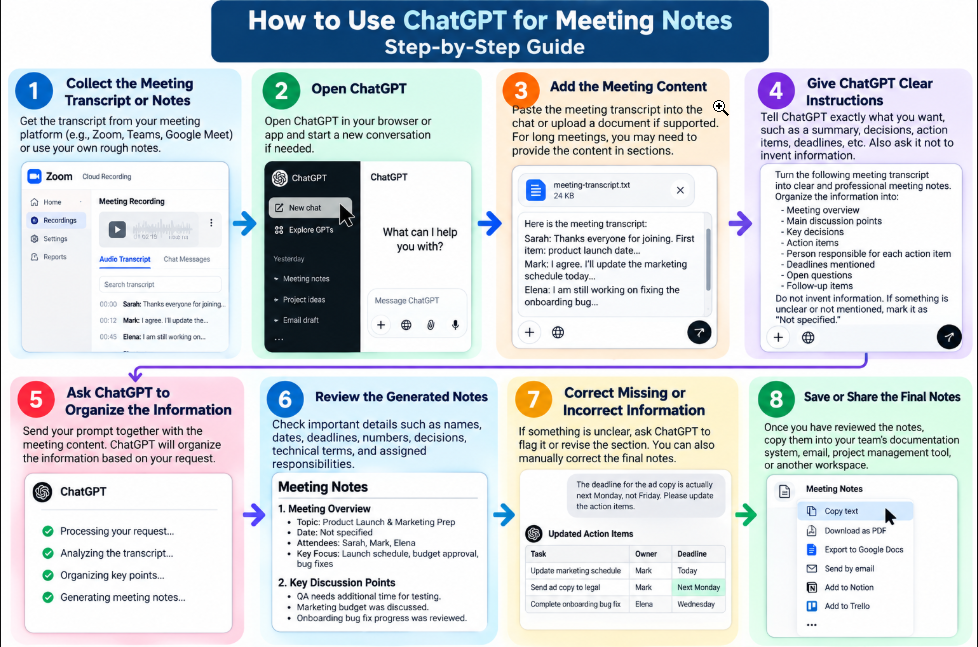
Meetings are a part of work, business, learning and teamwork. Meetings can move fast making detailed notes hard to take. Meetings that rush can leave you with notes. A full transcript of a meeting can be long and hard to read.
ChatGPT can help turn meeting transcripts or rough notes into organized summaries, decisions, action items, and follow-up emails. Instead of manually sorting through every part of a conversation, you can provide the relevant text and ask ChatGPT to organize it into a useful format.
This guide explains how to use ChatGPT for meeting notes, including practical prompts, examples, limitations, and privacy considerations.
Can ChatGPT Take Meeting Notes?
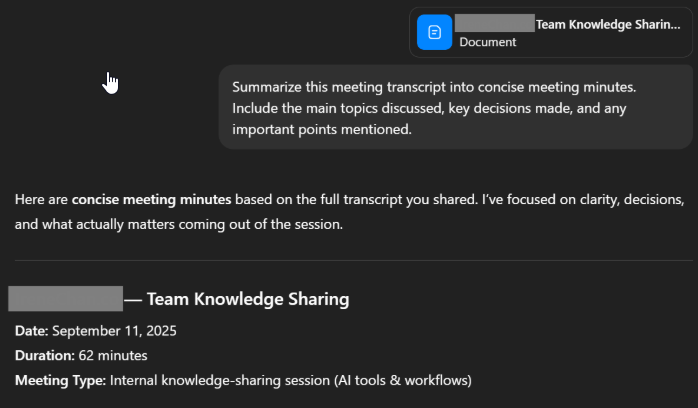
ChatGPT can process, summarize, and organize meeting information that you provide. The exact recording, transcription, file-upload, and voice features available can depend on your ChatGPT version, account, and current features.
A common workflow is to use a meeting platform or transcription tool to create a transcript and then provide that transcript to ChatGPT.
It helps to separate the process into a few stages:
- Recording and transcription: A meeting platform or transcription service captures the conversation and converts speech into text.
- Providing the content: You paste the transcript into ChatGPT or upload it when file uploads are available.
- Organizing the information: ChatGPT can turn the raw text into sections such as key points, decisions, and discussion topics.
- Extracting action items: ChatGPT can identify tasks, people responsible for them, and deadlines that are explicitly mentioned.
This means ChatGPT can be useful for creating meeting documentation, but you should still review the final result for accuracy.
For More Details Visit Help Center Page
How to Use ChatGPT for Meeting Notes
You can follow these simple steps to turn a transcript or rough notes into organized meeting documentation.
Step 1: Collect the Meeting Transcript or Notes
Start with the transcript from your meeting or gather the notes you took during the discussion.
If possible, provide enough context for ChatGPT to understand the full conversation rather than only sending isolated sentences.
Step 2: Open ChatGPT
Open ChatGPT in your browser or supported app and start a new conversation if appropriate.
Step 3: Add the Meeting Content
Paste the meeting transcript into the chat or upload the document if your version of ChatGPT supports the required file type.
For a very long meeting, you may need to provide the content in sections.
Step 4: Give ChatGPT Clear Instructions
Tell ChatGPT exactly what you want it to produce.
For example, you could request:
- A short executive summary
- Important decisions
- Action items
- Deadlines
- Open questions
- Follow-up tasks
Also tell it not to invent information that is not present in the transcript.
Step 5: Ask ChatGPT to Organize the Information
Send your prompt together with the meeting content.
ChatGPT can then organize the information according to the structure you requested.
Step 6: Review the Generated Notes
Do not assume that an AI-generated summary is automatically perfect.
Check important details such as:
- Names
- Dates
- Deadlines
- Numbers
- Decisions
- Technical terms
- Assigned responsibilities
Step 7: Correct Missing or Incorrect Information
If something is unclear, ask ChatGPT to flag it or revise the relevant section.
You can also manually correct the final notes.
Step 8: Save or Share the Final Notes
Once you have reviewed the notes, you can copy them into your team’s documentation system, email, project management tool, or another workspace.
For More Help: Data Controls in ChatGPT
Best ChatGPT Prompt for Meeting Notes
A structured ChatGPT meeting notes prompt can help you get more consistent results.
You can copy and use this prompt:
Turn the following meeting transcript into clear and professional meeting notes. Organize the information into:
- Meeting overview
- Main discussion points
- Key decisions
- Action items
- Person responsible for each action item
- Deadlines mentioned
- Open questions
- Follow-up items
Do not invent information. If something is unclear or not mentioned in the text, mark it as “Not specified.”
Why This Prompt Works
This prompt gives ChatGPT a clear structure and tells it to separate important parts of the meeting.
You can customize it by adding instructions such as:
- Keep the summary under 200 words.
- Use a professional tone.
- Put action items in a table.
- Highlight decisions separately.
- Identify unclear information.
- Create an executive summary for managers.
Example: Turning a Transcript Into Meeting Notes
The following is a fictional example showing how a meeting transcript can be organized.
Fictional Meeting Transcript
Sarah: Thanks everyone for joining. First item: product launch date. We need to push back the launch of the mobile app update to October 15th because QA needs more testing time.
Mark: I agree. I’ll update the marketing schedule today. Also, do we have budget approval for the online ad campaign?
Sarah: Finance approved $5,000 for ads. Mark, please send the ad copy to legal by Friday.
Elena: I am still working on fixing the onboarding bug. I should have a fix ready by Wednesday.
Sarah: Great. Let me know if you need extra support on that, Elena.
Organized Meeting Notes
Meeting Overview
- Topic: Product Launch and Marketing Preparation
- Main Focus: Launch schedule, advertising budget, and bug fixes
Key Discussion Points
- QA needs additional time to test the mobile app update.
- The online advertising budget was discussed and approved.
- The team reviewed progress on an onboarding bug.
Decisions Made
- The mobile app launch date was moved to October 15th.
- A $5,000 budget was approved for the online advertising campaign.
Action Items
- Update the marketing schedule.
- Send the advertising copy to the legal team.
- Complete the onboarding bug fix.
Owners and Deadlines
| Person | Task | Deadline |
|---|---|---|
| Mark | Update marketing schedule | Today |
| Mark | Send ad copy to legal | Friday |
| Elena | Complete onboarding bug fix | Wednesday |
Follow-Up Questions
- Will Elena need additional development support if the bug fix takes longer than expected?
This example shows how ChatGPT can turn a conversational transcript into a format that is easier to review and share.
5 ChatGPT Prompts for Better Meeting Notes
These prompts work directly with the GPT Workspace sidebar inside Google Docs. Save them in your meeting notes document for quick access:
Pre-meeting agenda: “Create a focused agenda for a 30-minute product roadmap review. Include time-boxed slots for each topic.”
Real-time note formatting: “Clean up these rough notes and organize them into clear bullet points grouped by topic: [Paste notes]”
Meeting summary: “Summarize these meeting notes in 3 sentences for a busy executive who could not attend.”
Extracting action items: “List every action item from these notes. Assign a priority label (High/Medium/Low) to each one.”
Decision log: “Extract only the decisions made during this meeting. Format them as a numbered list, including a one-sentence rationale for each decision.”
Each prompt can be customized with specific context (team name, project name, stakeholder names) to generate more accurate results.
How to Extract Action Items With ChatGPT
Sometimes you do not need a complete meeting summary. You may only want to know what needs to be done, who needs to do it, and when it is due.
You can ask ChatGPT to focus specifically on action items.
Prompt for Extracting Action Items
Review the following meeting text and extract all action items. Format the results as a table with four columns: Task, Owner, Deadline, and Status or Dependencies. If an owner or deadline is not explicitly mentioned, write “Unassigned” or “Not specified.” Do not infer missing information.
This can be particularly useful for project meetings where several tasks are assigned to different team members.
How to Create Meeting Minutes With ChatGPT
Meeting notes and formal meeting minutes are not always the same.
Informal notes may focus on important ideas and tasks, while formal minutes can provide a structured record of what was discussed and decided.
You can use ChatGPT to create a consistent format from a transcript.
Prompt for Formal Meeting Minutes
Format the following meeting transcript into professional meeting minutes. Include these sections:
- Meeting title, date, and time — use placeholders if information is missing
- Attendees present
- Agenda items discussed
- Decisions and formal motions
- Action items and next steps
- Adjournment notes
Keep the tone professional, objective, and neutral. Do not invent missing information.
Always review the generated minutes before treating them as an official record.
How to Create a Follow-Up Email With ChatGPT
After creating your meeting notes, you can also use ChatGPT to prepare a follow-up email for attendees.
Prompt for a Follow-Up Email
Based on the meeting summary above, draft a concise follow-up email for all attendees. Highlight the key decisions, list individual action items with deadlines, and thank everyone for their time. Do not add information that was not included in the meeting notes.
Example
Subject: Summary & Action Items: Product Launch Meeting
Hi Team,
Thank you for attending today’s project check-in. Here is a quick summary of the key decisions:
- Launch Date: Moved to October 15th to allow additional QA testing.
- Advertising Budget: $5,000 approved for the online campaign.
Next Steps:
- Mark: Update the marketing schedule today and send the ad copy to legal by Friday.
- Elena: Complete the onboarding bug fix by Wednesday.
Please review your assigned items and let the team know if any timeline needs clarification.
Best regards,
Sarah
Tips for Getting Better Meeting Notes With ChatGPT
You can improve the quality of your meeting notes by following a few simple practices.
Provide Complete Context
Whenever possible, give ChatGPT the complete transcript or enough surrounding context to understand the discussion.
Set Clear Formatting Rules
Tell ChatGPT whether you want bullet points, tables, short paragraphs, or a specific meeting-notes template.
Tell It Not to Guess
Ask ChatGPT to mark information as “Not mentioned” or “Not specified” instead of filling in missing details.
Separate Decisions From Discussion
Ask ChatGPT to distinguish between ideas that were discussed and decisions that were actually made.
Review Important Details
Always check names, dates, numbers, deadlines, and technical information against the original meeting content.
Protect Sensitive Information
Avoid sharing confidential information unless you understand the relevant privacy settings and your organization’s policies.
Use a Consistent Prompt
If your team has recurring meetings, using the same basic prompt can make the format of your notes more consistent.
Ask It to Flag Uncertainty
If a transcript is unclear, ask ChatGPT to identify uncertain statements instead of guessing what the speaker meant.
Privacy and Sensitive Meeting Information
Meeting transcripts can contain information that should not be shared casually with third-party services.
Before providing meeting content to an AI tool, consider whether it contains sensitive information such as:
- Personal information about customers or employees
- Passwords or access credentials
- Confidential financial information
- Private business strategies
- Proprietary source code
- Legal or medical information
If you are using ChatGPT for work-related meetings, check your organization’s AI and data-security policies before sharing internal information.
You should also review the privacy and data-control settings available in your ChatGPT account before using the service for sensitive content.
Limitations of Using ChatGPT for Meeting Notes
ChatGPT can make the process of organizing meeting information easier, but AI-generated notes can contain mistakes.
Some common limitations include:
Transcript Errors
If the original transcript contains incorrect words or missing sections, ChatGPT may base its summary on that inaccurate information.
Missing Context
A written transcript may not capture tone, gestures, background context, or other non-verbal information.
Speaker Confusion
If the transcript does not clearly identify speakers, ChatGPT may have difficulty determining who made a particular statement or received a task.
Oversimplification
A short summary can sometimes leave out important details or nuances from a longer discussion.
For these reasons, always review AI meeting notes before sending them to other people or using them as an official record.
ChatGPT for Meeting Notes vs Dedicated AI Meeting Assistants
ChatGPT and dedicated AI meeting assistants can both help with meeting documentation, but they generally work in different ways.
| Feature | ChatGPT With a Transcript | Dedicated AI Meeting Assistant |
|---|---|---|
| Primary method | Provide a transcript or notes | May automatically capture or transcribe meetings |
| Customization | Flexible prompts and formatting | Usually provides predefined summaries and workflows |
| Meeting capture | Depends on the features available to your account | Often includes meeting recording or transcription features |
| Workflow | Useful for custom summaries, notes, and emails | Often designed for automated meeting workflows |
| Best suited for | Users who want control over the output format | Users who want more automated meeting documentation |
Neither option is automatically the right choice for everyone.
If you already have a transcript and want to control exactly how the information is organized, ChatGPT can be useful. If you want automated meeting capture, transcription, and workflow integrations, a dedicated meeting assistant may be more suitable.
Conclusion
Using ChatGPT for meeting notes can make it easier to turn transcripts and rough notes into clear organized summaries. It helps pull out decisions, action items and even draft follow-up emails. The important thing is to give clear instructions to ChatGPT. You should tell it not to make up any details that weren’t in the meeting. Always double-check names, dates, numbers, deadlines and major decisions before sending out the summary.
For tasks like turning a transcript into structured notes ChatGPT works well and saves time.. If you need more support—, like automatic recording, real-time transcription or built-in scheduling tools you might want to look at dedicated AI meeting assistants. These tools often offer workflows and deeper integration with your calendar and communication apps.
Frequently Asked Questions
Can ChatGPT take meeting notes?
Yes. You can provide ChatGPT with a meeting transcript or your own notes and ask it to create a structured summary, identify decisions, and organize action items.
Can I use ChatGPT to summarize a meeting transcript?
Yes. Give ChatGPT the transcript and a clear instruction explaining how you want the meeting summary organized. You can request sections such as key points, decisions, action items, and open questions.
What is the best ChatGPT prompt for meeting notes?
A useful prompt should specify the sections you want and tell ChatGPT not to invent information. For example, you can request an overview, discussion points, decisions, action items, owners, deadlines, and open questions.
Can ChatGPT create meeting minutes?
Yes. ChatGPT can format a transcript into a structured meeting-minutes template. However, generated minutes should be reviewed for accuracy before being used as an official organizational record.
Can ChatGPT identify action items from a meeting?
Yes. ChatGPT can identify tasks, owners, and deadlines that are explicitly mentioned in a transcript. If information is missing, ask it to mark the item as “Not specified” rather than guessing.
Can ChatGPT create a meeting follow-up email?
Yes. You can provide the meeting summary and ask ChatGPT to create a concise follow-up email containing key decisions, action items, and deadlines.
Is it safe to put meeting notes into ChatGPT?
You should consider the sensitivity of the information before sharing meeting content with any AI service. Follow your organization’s data-security policies and avoid sharing confidential, personal, financial, legal, or other sensitive information unless you are authorized to do so.
Can ChatGPT replace an AI meeting assistant?
Not necessarily. ChatGPT can help with sorting and organizing transcripts. Dedicated AI meeting assistants often offer automatic meeting capture, transcription, speaker identification and connections, to workplace tools. The best choice depends on your workflow. The features you require.
Also Read: Best AI Tools for Students in 2026: 15 Tools to Study Smarter

Pingback: How to Use ChatGPT for Emails: Step-by-Step Guide - AI Crest Lab
Pingback: ChatGPT Review 2026: Features, Pricing, Pros & Cons (Complete Guide) - AI Crest Lab